
P4Scout2009.2.0 - App Store
You'll be able to see results in few seconds.
Publisher Description
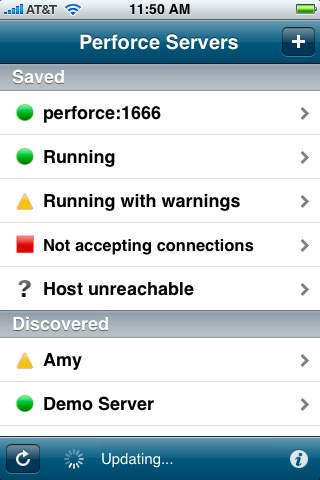
P4Scout, by Perforce (www.perforce.com), enables you to check the status of your Perforce servers. When you launch P4Scout, it displays a list of servers, both preconfigured (you enter the settings) and discovered (via Bonjour).
Server status is indicated by an icon to the left of the server name:
* (green dot): up and running
^ (yellow triangle): problem (long-running tasks/expired licenses/approaching user quota)
[ ] (red square): can't connect to Perforce server process (can reach host machine)
? (question mark): server host machine cannot be reached
To move a discovered server to the Saved list, tap it and, on the Detail pane, click Keep. To define a new server to check, tap +. Fill out the details in the New Server pane and tap Save.
For more detail about a server, click the server name. P4Scout displays a Detail pane, listing the server name, host and port, version, uptime, license expiration (time remaining) and number of users, plus a list of long-running tasks. To initiate an ssh session with the server machine (using a client such as TouchTerm), tap the SSH button.
To list long-running tasks, tap the arrow next to the Monitor field. P4Scout displays the task pane. To email the user who launched the task, tap the task.
To change the default Perforce user name (used to connect to Perforce servers), use the Settings app.
(P4Scout uses the Perforce Objective-C API, available soon from Perforce.)
Requires iOS 3.0 or later. Compatible with iPhone, iPad, and iPod touch.
About P4Scout
The company that develops P4Scout is Perforce Software, Inc.. The latest version released by its developer is 2009.2.0.
To install P4Scout on your iOS device, just click the green Continue To App button above to start the installation process. The app is listed on our website since 2009-05-30 and was downloaded 0 times. We have already checked if the download link is safe, however for your own protection we recommend that you scan the downloaded app with your antivirus. Your antivirus may detect the P4Scout as malware if the download link is broken.
How to install P4Scout on your iOS device:
- Click on the Continue To App button on our website. This will redirect you to the App Store.
- Once the P4Scout is shown in the iTunes listing of your iOS device, you can start its download and installation. Tap on the GET button to the right of the app to start downloading it.
- If you are not logged-in the iOS appstore app, you'll be prompted for your your Apple ID and/or password.
- After P4Scout is downloaded, you'll see an INSTALL button to the right. Tap on it to start the actual installation of the iOS app.
- Once installation is finished you can tap on the OPEN button to start it. Its icon will also be added to your device home screen.
Program Details
System requirements
Download information
Pricing
Version History
version 2009.2.0
posted on 2009-05-30
Disclaimer
Official App Store Link
We do not host P4Scout on our servers. We did not scan it for viruses, adware, spyware or other type of malware. This app is hosted by Apple and passed their terms and conditions to be listed there. We recommend caution when installing it.
The App Store link for P4Scout is provided to you by apps112.com without any warranties, representations or guarantees of any kind, so access it at your own risk.
If you have questions regarding this particular app contact the publisher directly. For questions about the functionalities of apps112.com contact us.
